 NotiFast
How to Set Up NotiFast for Community Discord Channels (Forum Support)
Most people use NotiFast for personal alerts — tracking a product page, watching for restocks, catching eBay deals. But if you run a Discord community, there's a bigger play: set up monitors that feed into shared channels so your entire server benefits from automated alerts. Deal groups, job boards, sneaker cook groups, collectibles communities — one person sets up the monitor, everyone gets the notifications.
Forum Channels: Organized Alerts, Zero Clutter
The real unlock is Discord forum channels. Instead of dumping every notification into a single text channel where messages pile up and scroll away, NotiFast can post to forum channels. Each alert creates its own thread. Members can discuss individual listings, flag fakes, compare prices, or just react — all without cluttering the main feed.
Here's what it looks like in practice. This is a jobs-demo forum channel where NotiFast monitors job boards and posts each new listing as a separate forum thread:
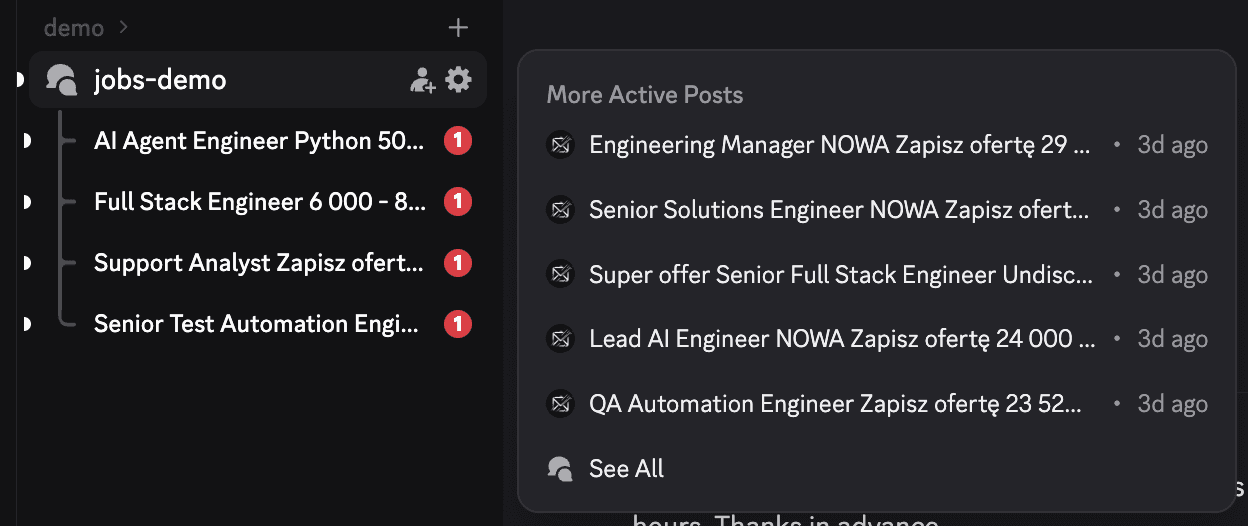
Each thread shows up in the sidebar with notification badges. Members can browse threads they care about and ignore the rest. Click into any thread and you get the full details:
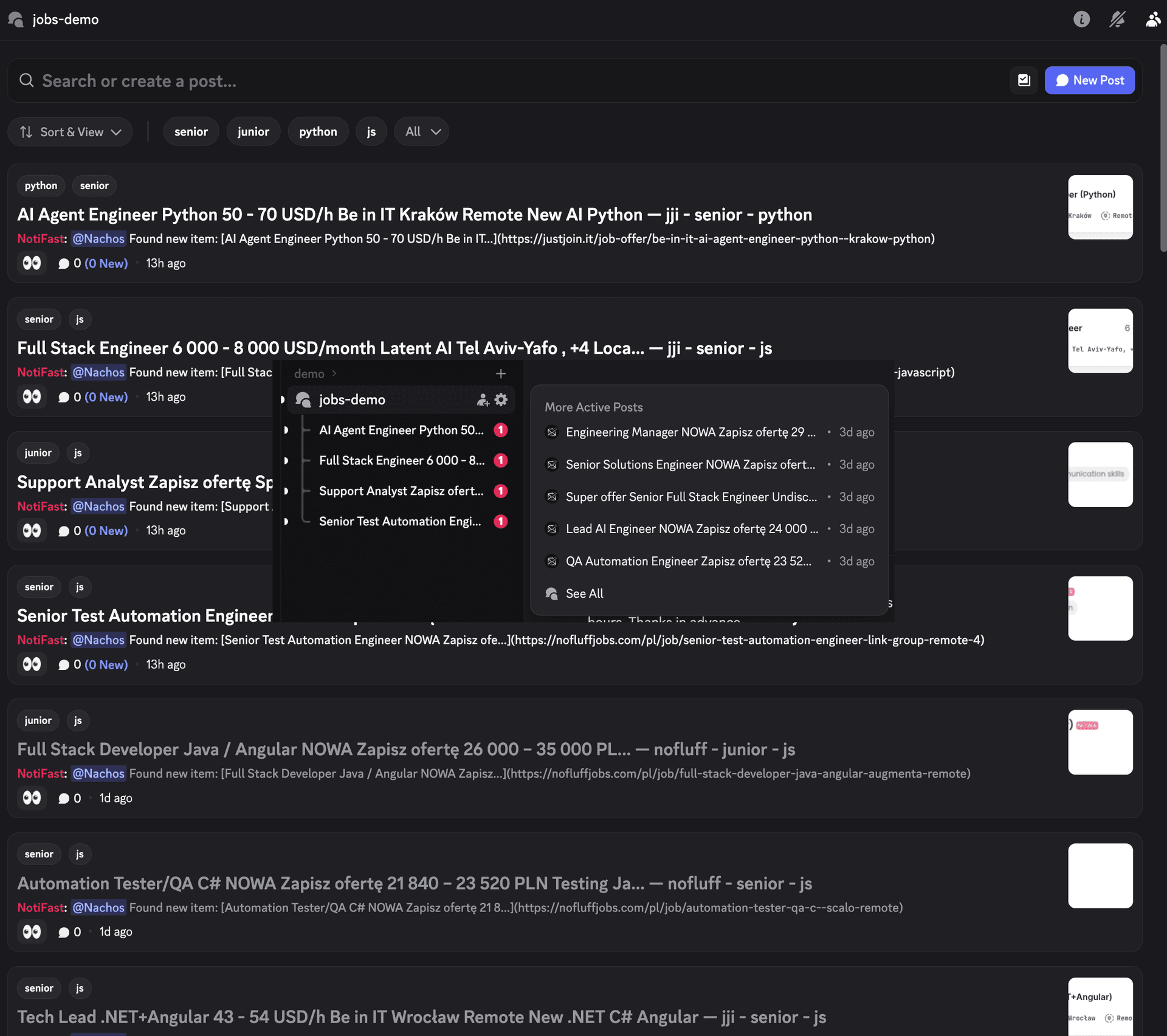
Tags, source links, timestamps — everything organized. Compare that to a text channel where 50 job alerts stack on top of each other and the good ones get buried. Forum channels make community alerts actually usable.
How to Set It Up
Takes about two minutes. Five steps.
1. Create a Forum Channel
In your Discord server, create a new forum channel (or use an existing one). Name it something descriptive —#job-alerts, #deal-feed, #restock-tracker. You can also add tags for categories if you want members to filter by type.
2. Add NotiFast
Invite NotiFast to your server. Make sure the bot has permissions to send messages and create threads in the forum channel.
3. Run the Command
Go to the forum channel and run /notify-new-items. The setup wizard walks you through it. For content changes (price tracking, availability), use /notify-content-update instead.
4. Paste the URL
Enter the page you want to monitor. For a job board, that's a search results page filtered to the roles you care about. For a marketplace, it's a filtered search. For restocks, it's the product category page. The more specific the URL, the more relevant the alerts.
5. Set the Interval and Confirm
Pick how often NotiFast checks the page. For fast-moving feeds like job boards or flash deals, every few minutes works well. For slower categories, 15-30 minutes is fine. Hit confirm and you're live.
What Communities Are Using This For
- Job boards — Monitor Indeed, LinkedIn, NoFluff Jobs, JustJoin.it, or any job site. Each new posting becomes its own forum thread where members can discuss salary, company reviews, and application tips.
- Deal groups — eBay, Amazon Lightning Deals, StockX price drops. Members get organized threads per deal instead of a firehose of messages.
- Sneaker and streetwear — Nike SNKRS releases, Adidas Confirmed drops, SSENSE sales. Each drop gets its own thread for legit checks and size discussions.
- Restock alerts — NVIDIA GPUs, Pokemon cards, PS5 consoles. When something comes back in stock, the community sees it instantly.
- Real estate — Zillow, Redfin, Apartments.com. New listings posted as threads so members can discuss neighborhoods, pricing, and availability.
See It Live
Want to see forum channel alerts in action before setting it up yourself? Join our demo Discord server and check out the jobs-demo forum channel. Real alerts, real data, running right now.
Get Started
Add NotiFast to your server, create a forum channel, and run /notify-new-items. Your community gets organized, automated alerts — and you stop manually posting updates.